 Help Center
How do I clear my browser cache in Google Chrome?
- Open Chrome.
- Click on the three dots at the top right to access settings.
- Select Settings.
- Navigate to Privacy and security.
- Click Clear browsing data.
- Choose the time range.
- Select Browser History, Cookies and other site data and Cached images and files.
- Click Clear data.
- Allow the process to complete, then restart the browser.
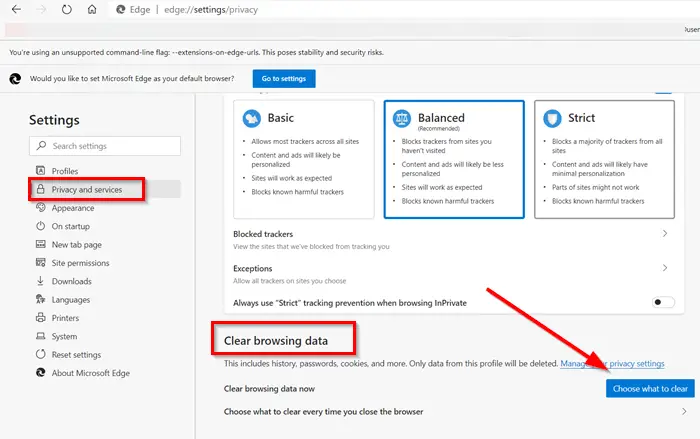
How do I clear my browser cache in Microsoft Edge?
- Open Edge.
- Click on the three dots at the top right for settings.
- Select Settings.
- Choose Privacy, search, and services.
- Under Clear browsing data, click Choose what to clear.
- Check Cached images and files.
- Select the desired time range.
- Click Clear now.
- Wait for completion then restart.
How do I clear my browser cache in Mozilla Firefox?
- Open Firefox.
- Click the three horizontal lines at the top right for settings.
- Choose Options.
- Select Privacy & Security.
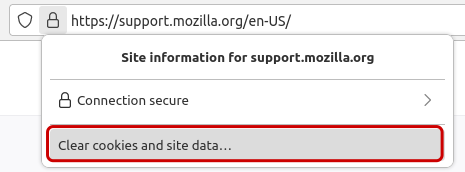
- Scroll to Cookies and Site Data.
- Click Clear Data.
- Check Cached Web Content.
- Choose the time range.
- Click Clear.
- Wait until the process finishes and restart the browser.
How do I clear my browser cache In Safari?
Method 1: Clear All Website Data and Cache
- Open Safari on your Mac.
- Click Safari in the top menu bar.
- Choose Settings.
- Click the Privacy tab.
- Click Manage Website Data.
- Click Remove All.
- Click Remove Now to confirm, then hit Done.
Method 2: Use the Develop Menu (Cache Only)
- Open Safari.
- Go to Safari > Settings and click the Advanced tab.
- Check the box for Show features for web developers.
- Click Develop in the top menu bar.
- Select Empty Caches (or press
Option + Command + E).